4321 Inverter
Published:
Take a read of Shepard’s Online CAD Tutorial. It’s very comprehensive guide.
- Below, we’ll walk through the process systematically and highlight common pitfalls so you can avoid a massive learning curve.
- If anothing messes up, see if it’s in the Virtuoso FAQ
Layout
Assuming you have already designed and tested the inverter schematic
- You may find
vbitfromanalogLibuseful
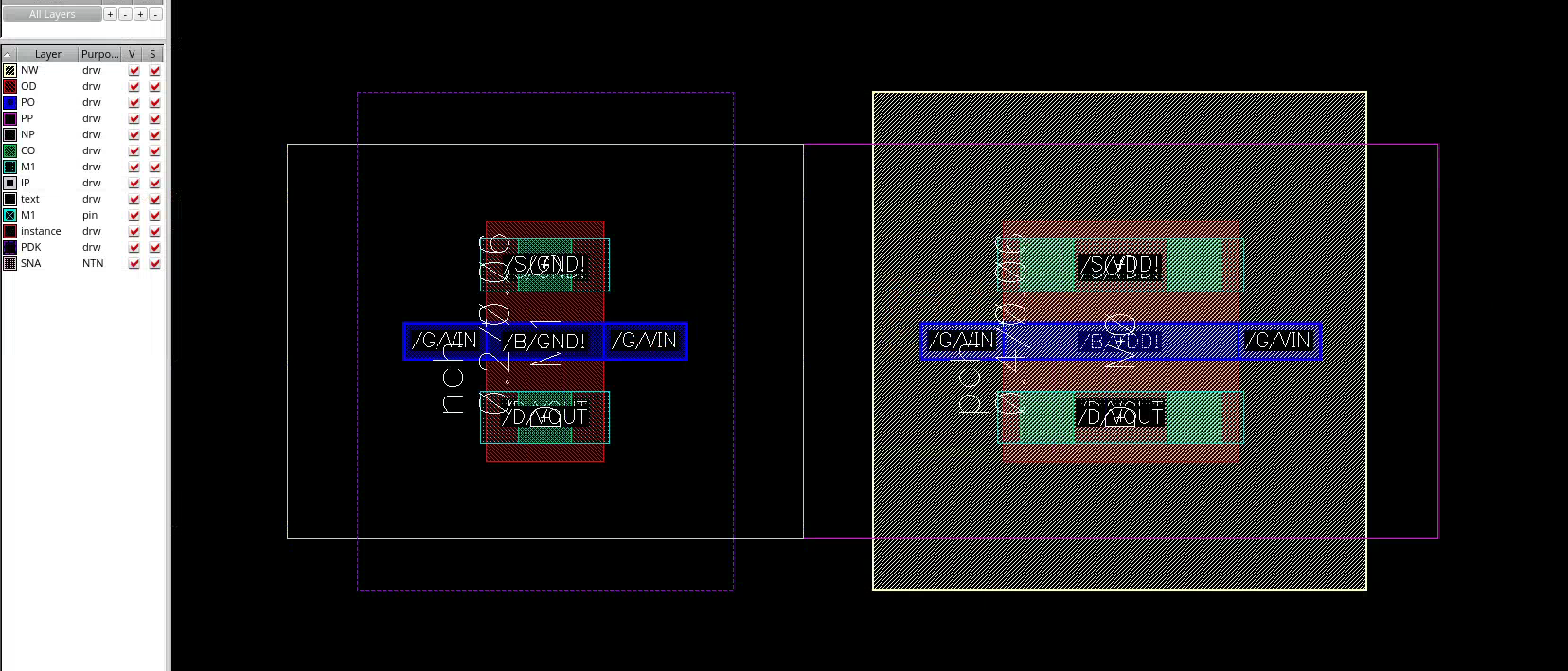
1. Instance Generator
- In Virtuoso, create a new “Layout” with the same name as your schematic
- Use “Connectivity/Generate/All From Source”. It will generate the two transistors, and a few cyan (M1) Pins
- The instances between schematic and layout should match. Selecting one highlights the other.
- Rotate the transistors by 90 degrees.
- Align the transistors
- Make sure
NPandPPboundaries perfectly align. No gaps or overlaps
- Make sure
Layers
Before drawing, it’s important to understand each layer in tsmc-n65:
On the sidebar, you can double click on a layer to make it exclusively visible, and inspect each layer individually
MOSFET
A MOSFET is a piece of silicon with 4 terminals: Gate, Source, Drain, and Body. S and D are typically symmetrical.
Body
NW(N-Well): PMOS bodySUB(P-Well, SUBstrate): NMOS body- Marked by
PDK
- Marked by
Source/Drain (diffusion)
OD(Oxide Diffusion): source and drainPP(P imPlant mask,pimp)PP∩OD: p+ diffusion
NP(N imPlant mask)NP∩OD: n+ diffusion
Gate
PO(POlysillicon)
Metal
Silicon/metal interface
CO(COntact, Ohmic): connectsPO/OD(silicon) withM1(metal)M1: First Metal layerVIA1: connectsM1andM2M2: Second Metal layerVIA2: connectsM2andM3- and so on…
Pin
Used to label connections across hierarchies. Nothing electrical.
If you are interested in the physical implementation of these layers, this article explains in glorious detail
- In fact, you can manually draw the layers, instead of using the instance generator. Fitting the parameters and passing DRC would be a pain, though.
2. Body Taps
Next, we need to tap (via) the Bodies to the power supplies. Click o to add M1-SUB and M1-NW Vias.
- Again, make sure
NPandPPboundaries between the transistors and vias perfectly overlap.
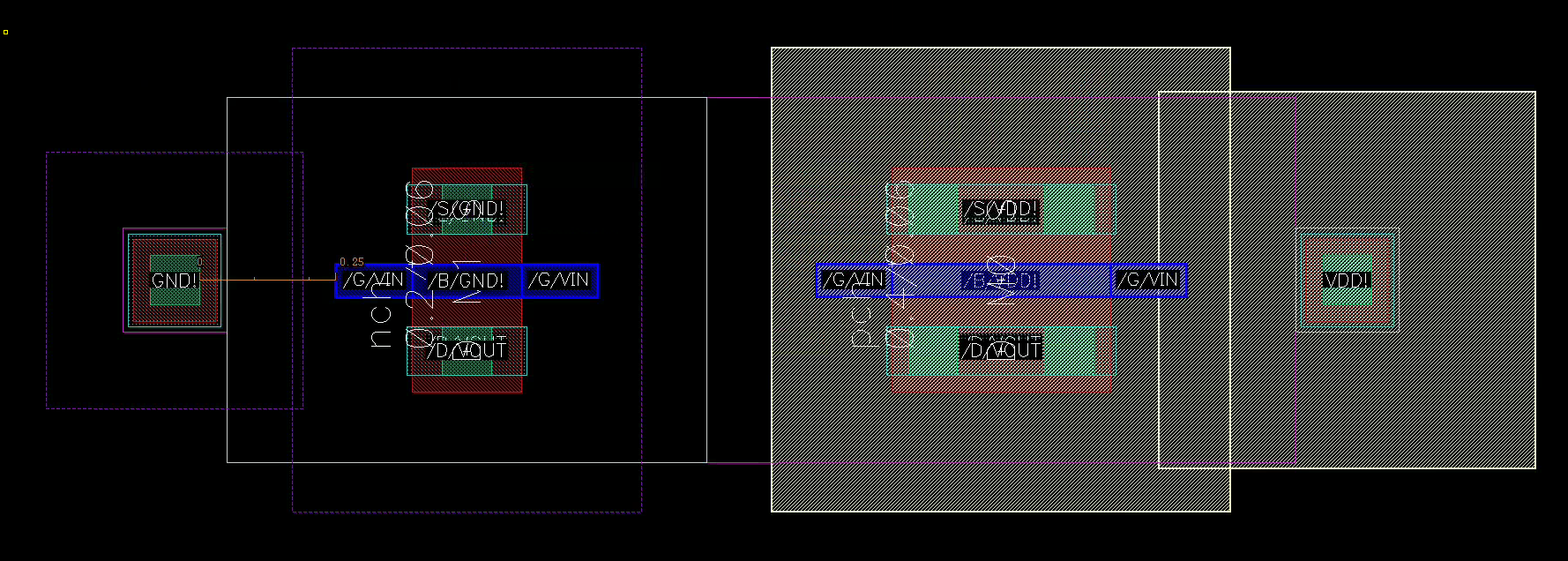
The Vias have a similar stack of 5 layers connecting Body to Metal:
NW(P) / substrate (N)NP(P) /PP(N)ODCOM1
Different body taps are functionally equivalent, provided they tap the bodies to respective power rails. One body tap can cover a large region of P/N substrate
- The “Detached Body” option places Body contacts explicitly on individual transistors. We don’t need that, since we’ve already added decidated Body Vias.
- In typical standard cell design, we typically dedicate tap cells placed in parallel with the logic
- Here for our custom layout, we have ample space on the left/right power rails. Placing body taps there saves space.
3. Connections
Now, use the rectangle (r) or path (p) tool to connect the PO gate and M1 source/drain to complete the circuit.
- Use minimum width (60 nm for
PO, 90 nm forM1). It should be the same as what’s already on the transistors.
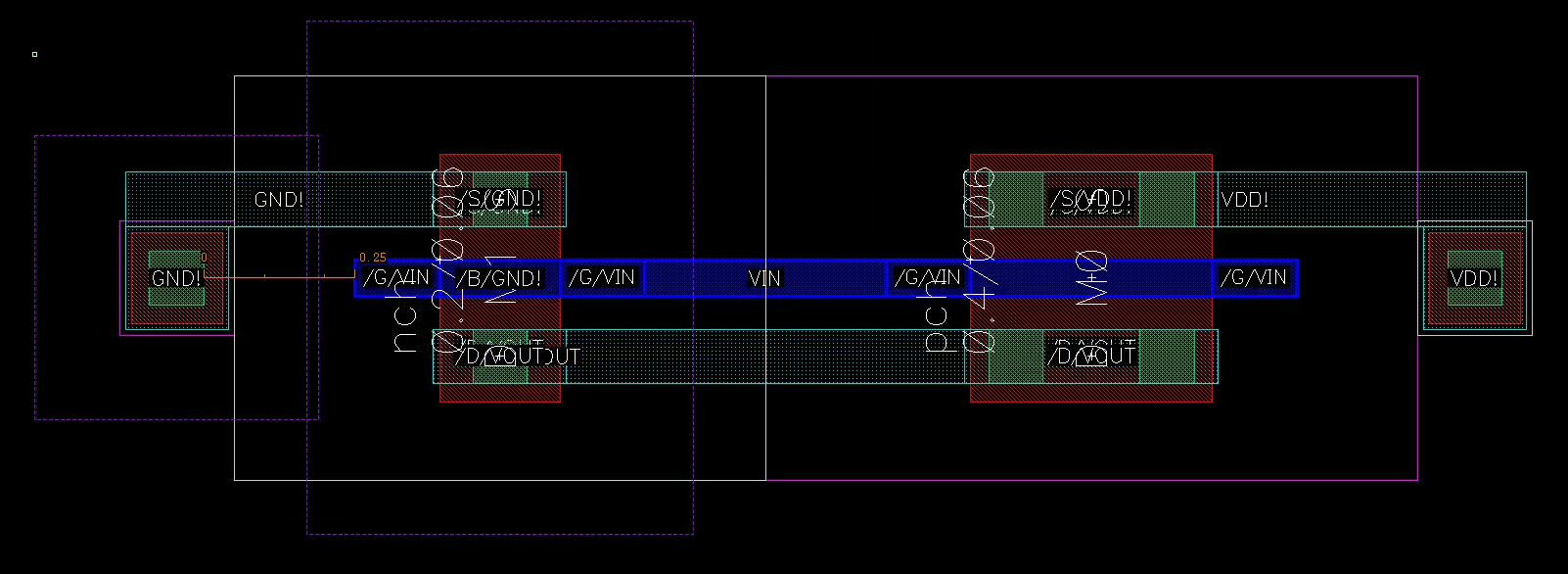
You are allowed to overlap the rectangles. Only their union counts.
DRC
Run DRC as frequently as possible, especially if you are a beginner!!
Skip to Shepard’s Calibre DRC tutorial and set up the environment
Below are the main types of DRC errors for TSMC N65:
- Shape rules
- Shapes must satisfy a minimum area
- Shapes must have a minimum width
- Shapes must also meet constraints, such as a minimum side length
- Inter-shape rules
- Enclosure: for example, a Via must be properly enclosed by its associated Metal layers
- Sometimes, minimum overlap or enclosure area also apply.
- Spacing: minimum spacing must be maintained
- between shapes of the same layer, and
- between shapes on different layers, such as spacing to body connections
- Enclosure: for example, a Via must be properly enclosed by its associated Metal layers
Here’s a (simplified) list from textbook pages 118-119
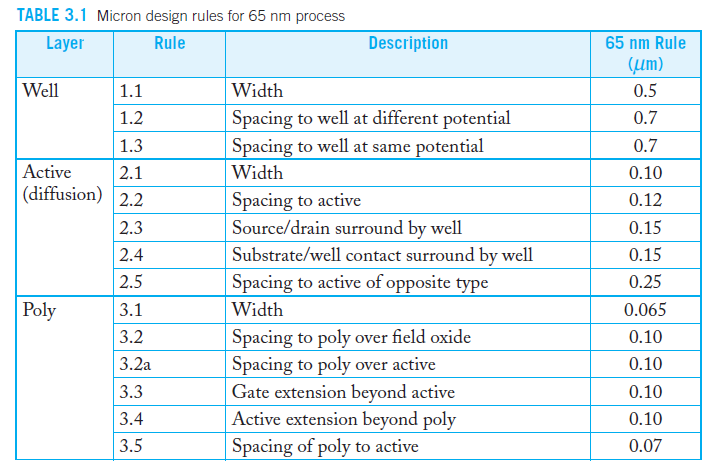
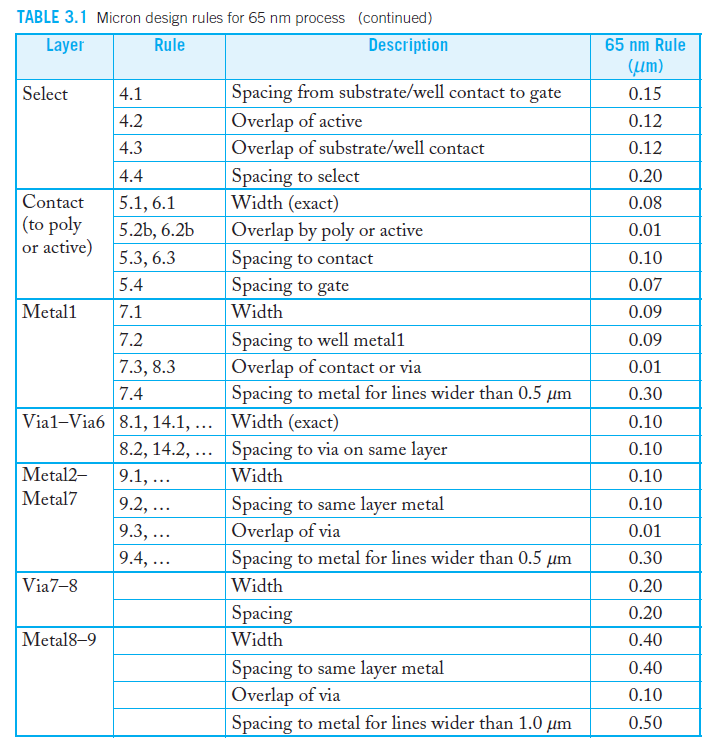
Let’s run a DRC right now: 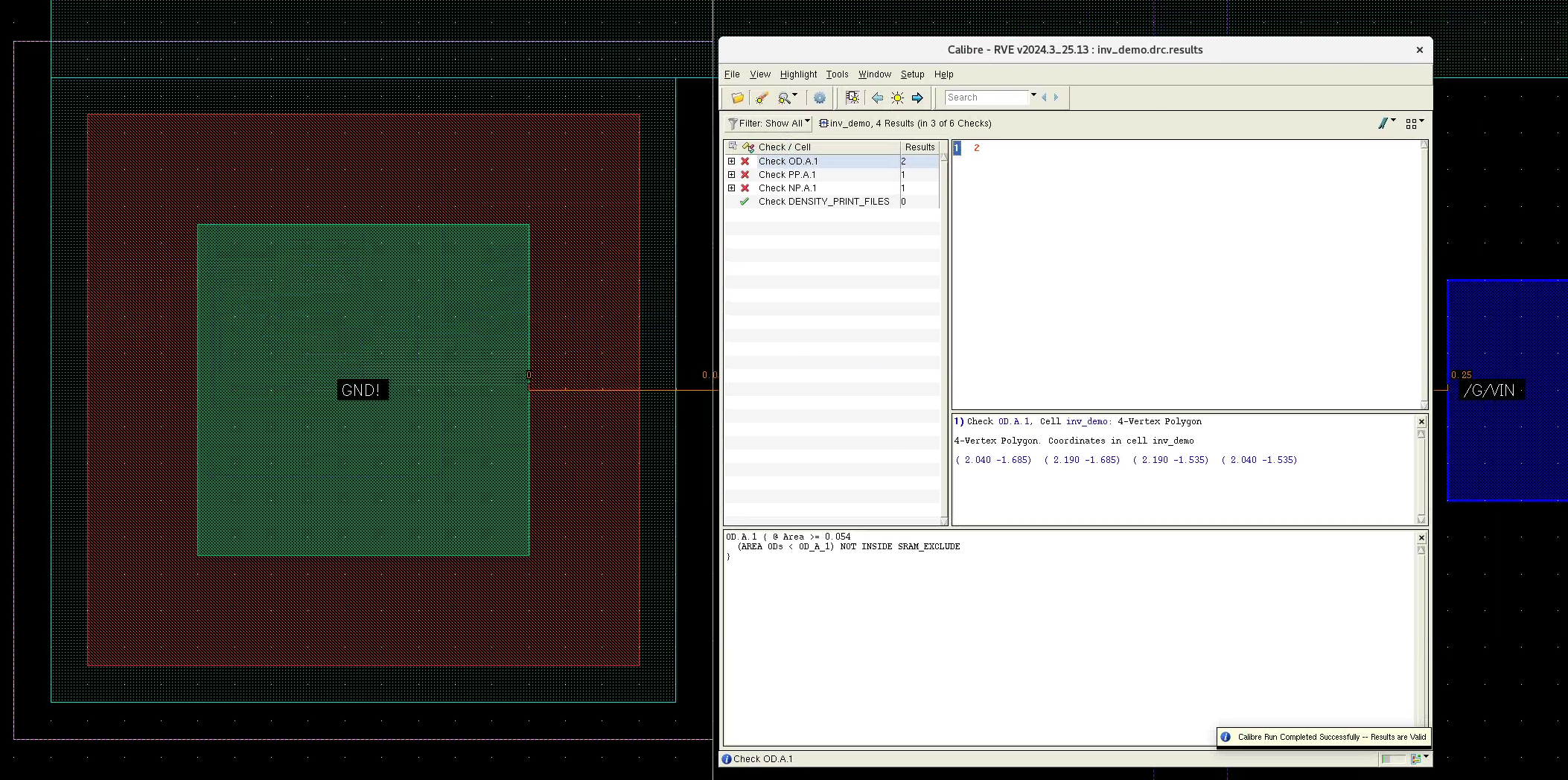
RIP, got 4 errors. They are because the OD and PP/NP areas of our Body Vias are too small. Since we have ample space, we can simply make them larger. You can:
- Increase the number of rows/columns of the Vias
- This is simple. 4 rows/cols will work
- Feels like a waste of space for now, but we will expand our logic
- Manually draw a larger
OD/PP/NParound the current layer- This is more risky, as changing one layer may violate other spacing/enclosure rules,
- but useful for aggressive optimizations, as you will see later
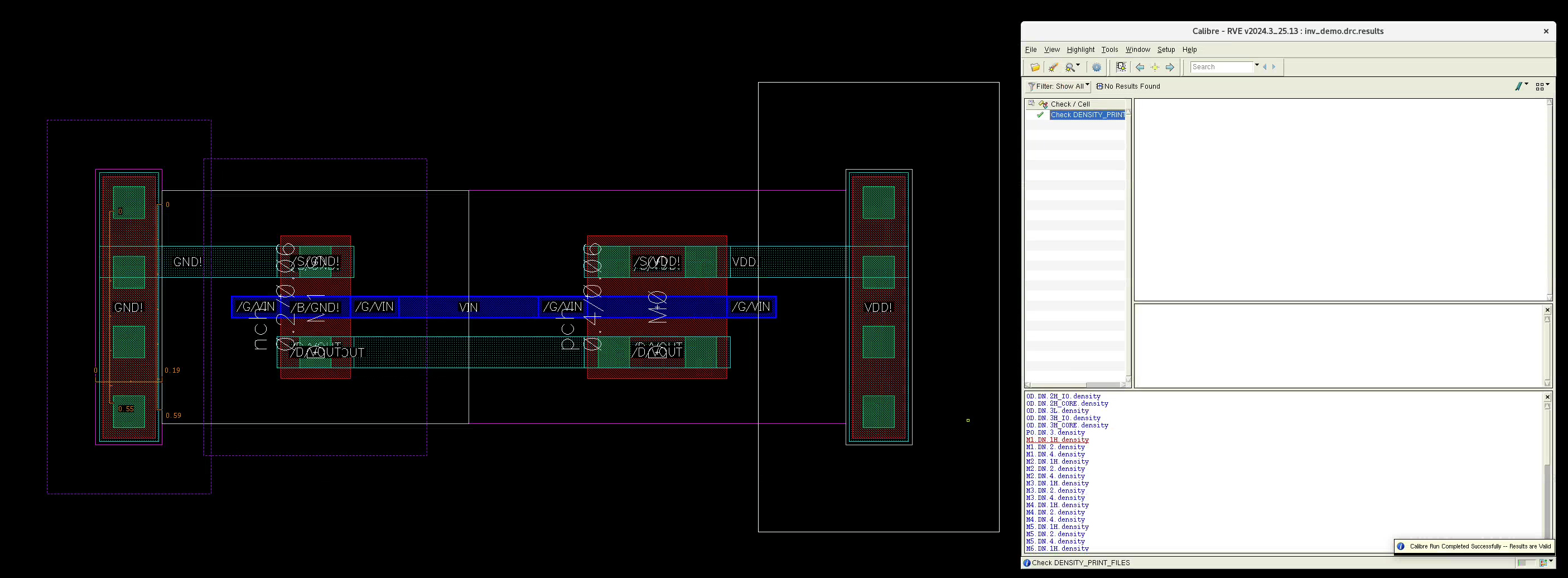
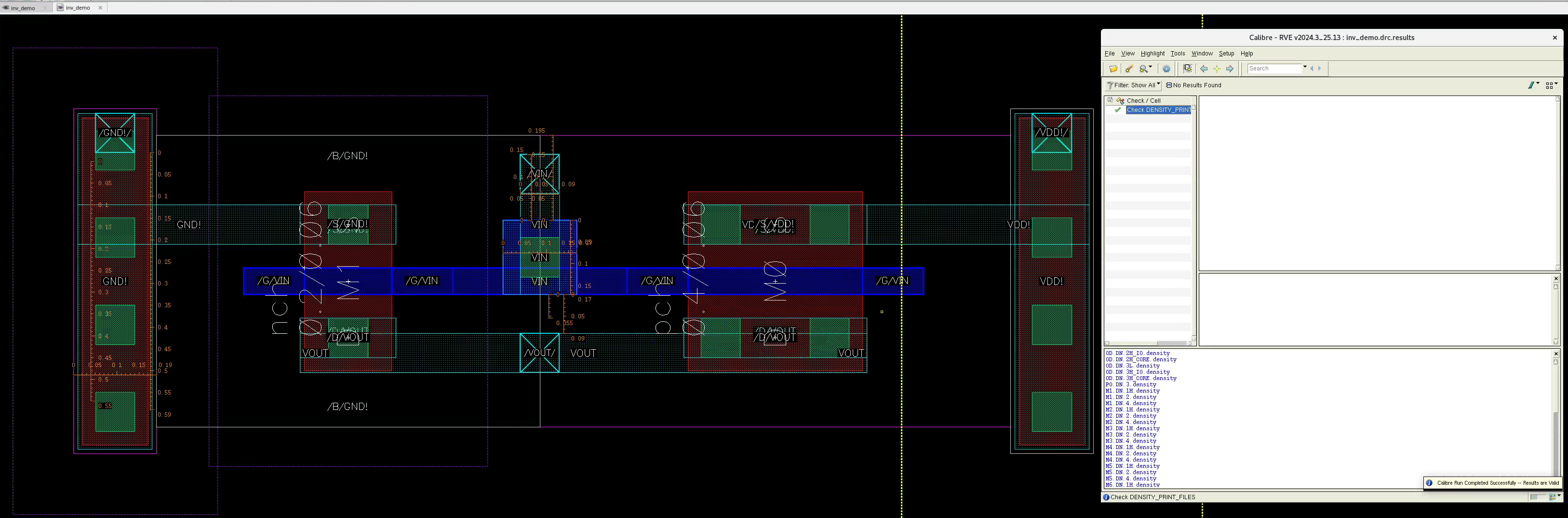
We are now DRC clean!
4. Gate Via
There’s one more step to connect the gate input. Add a M1-PO via.
Similar to the Body Vias, this M1-PO also has layers PO, CO, and M1. All layers must satisfy DRC rules.
Now run a DRC:
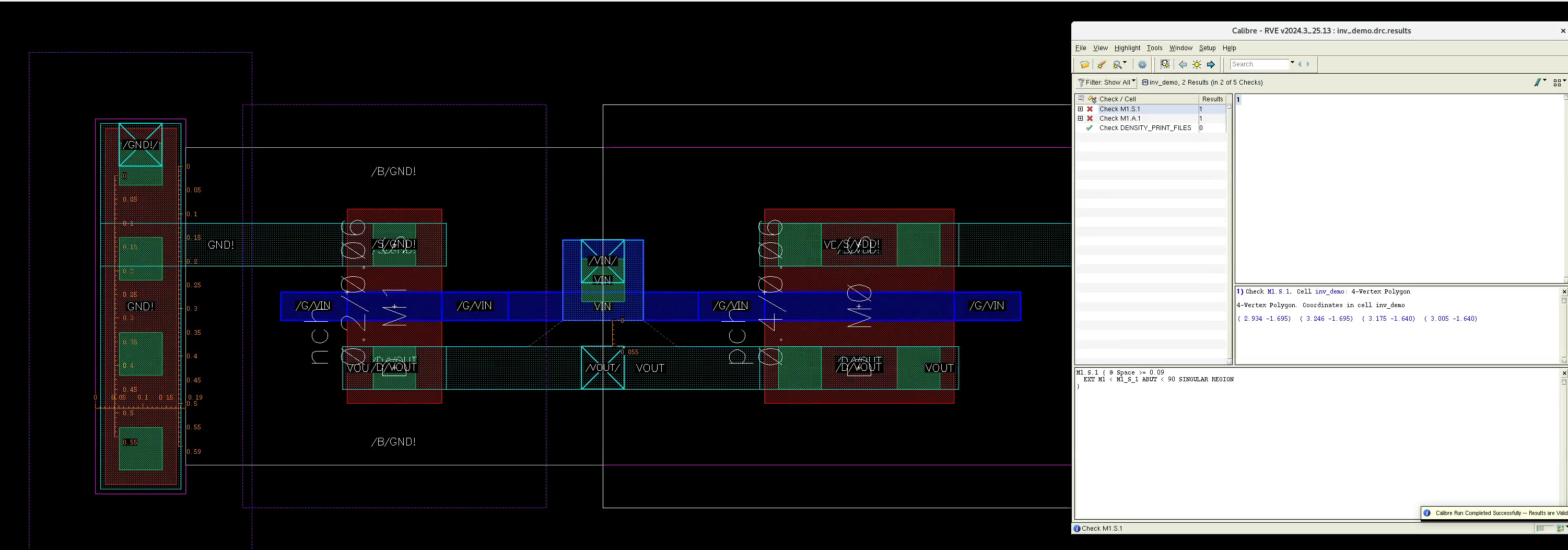
RIP, another two violations. Make only M1 layer visible for more clarity
M1of the via is too close with our VOUTM1.- Fix: Move either
M1rectangle away, so that they are at least 0.09 um apart
- Fix: Move either
M1of the via’s area is too small. It’s like an island- Fix: Add a larger
M1rectangle to the via to make theM1area more than 0.042 um²
- Fix: Add a larger
LVS
Use m to move the Generated M1 Pins over to the metals.
Check LVS. Read the tutorial for the setup
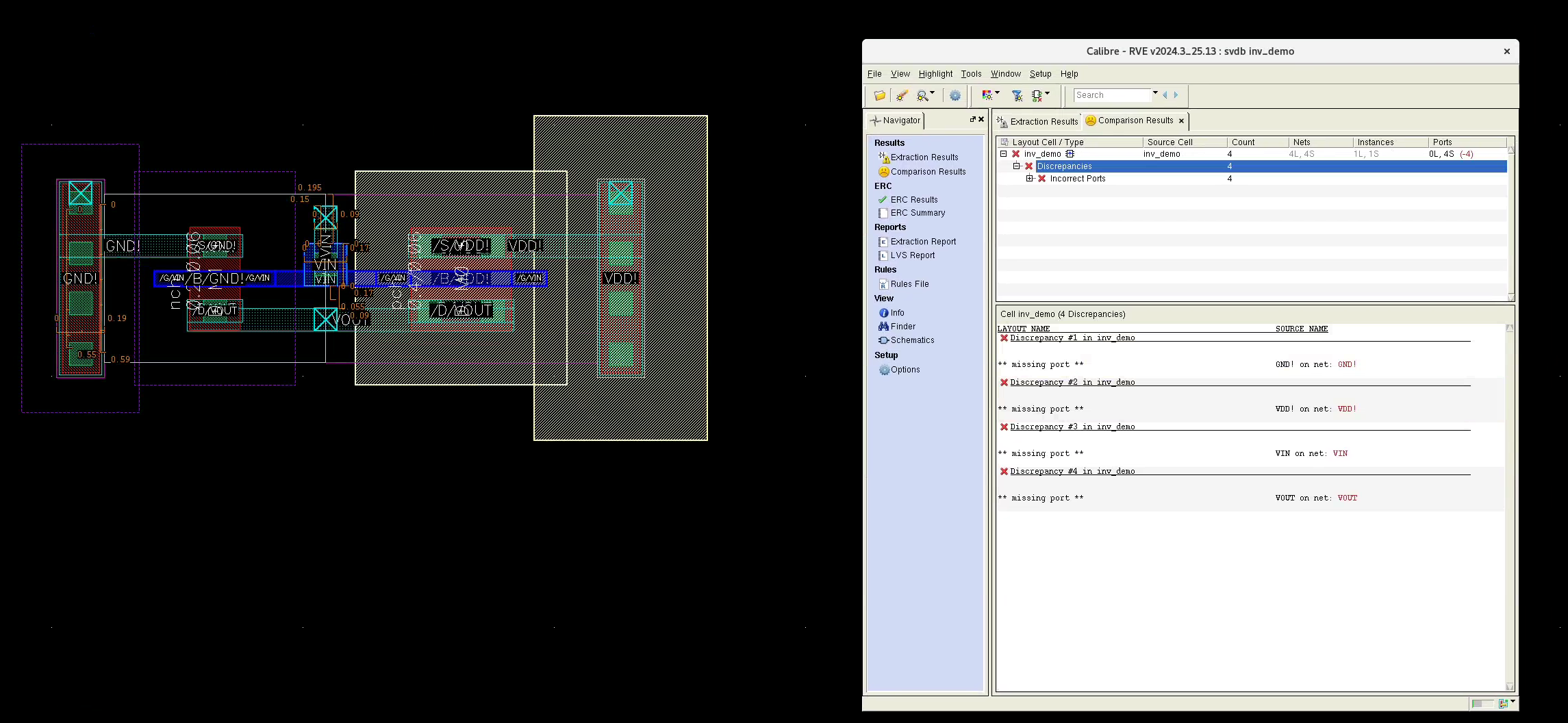
If your layout is LVS clean, skip this part
RIP, we got 4 “Incorrect Ports” errors. Calibre LVS somehow does not recognize our pins, despite that they are created with labels! This is very rare…
In this case, first check if Virtuoso recognizes the pin. Try moving the pins around and see if the label (“VOUT”) and the cross shows up. If not, delete the pins and do “Connectivity/Update/All from Source” again. Make sure you select the “Create Label” option
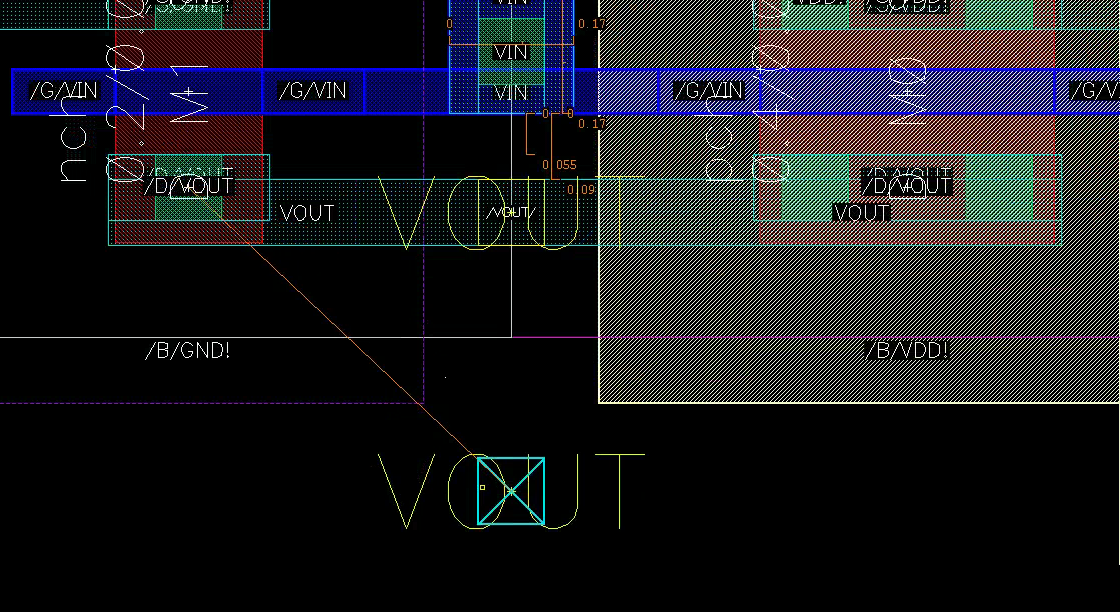
Here, Virtuoso does have the label, so let’s manually add the labels to the pins again to let Calibre LVS know.
- Click
land create label “VOUT”. - Click the center of your pin
- Choose “Purpose”: “pin” as the object
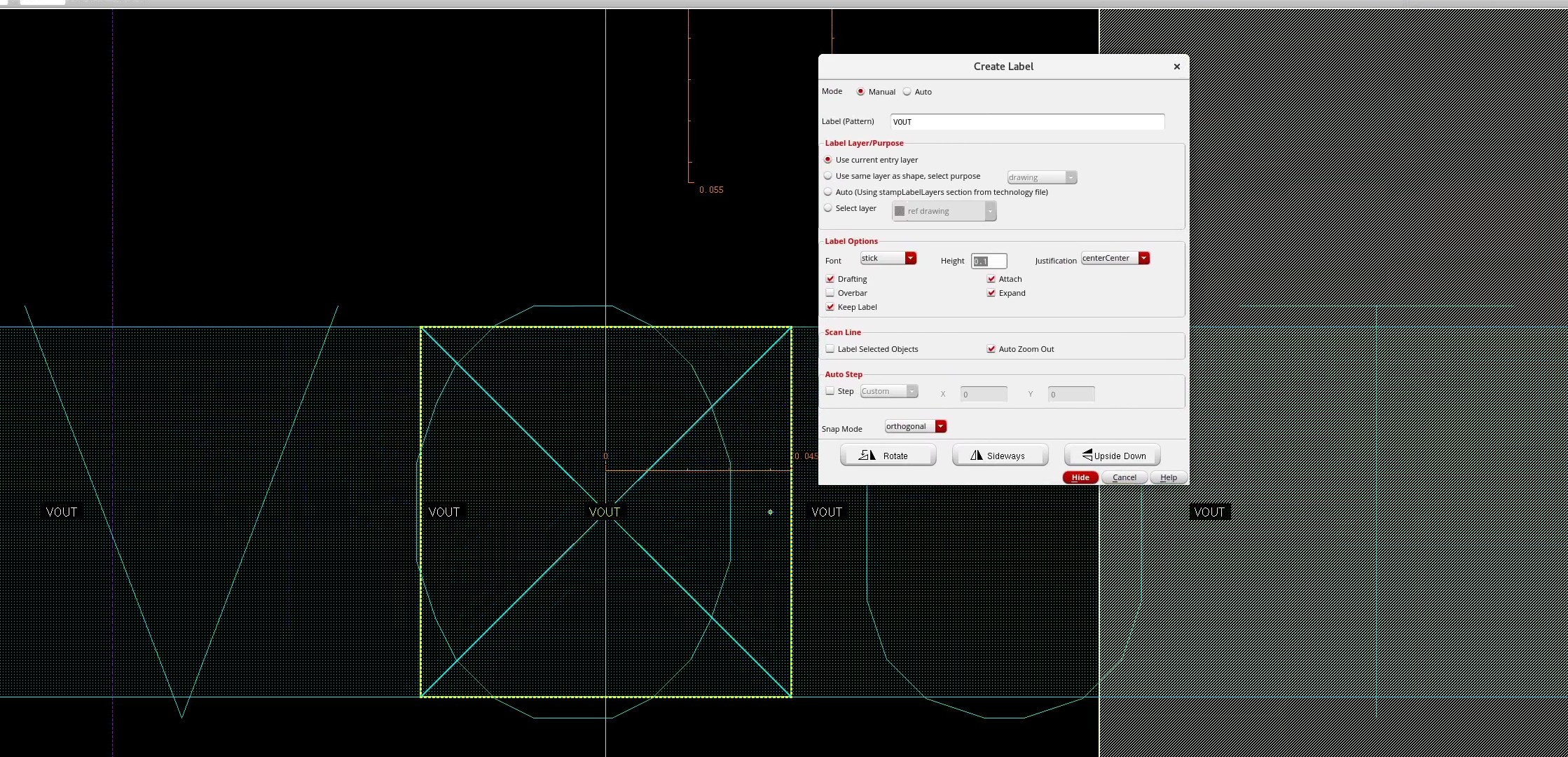
Now, as a proof of concept, run LVS again to see if the error count drops to 3:
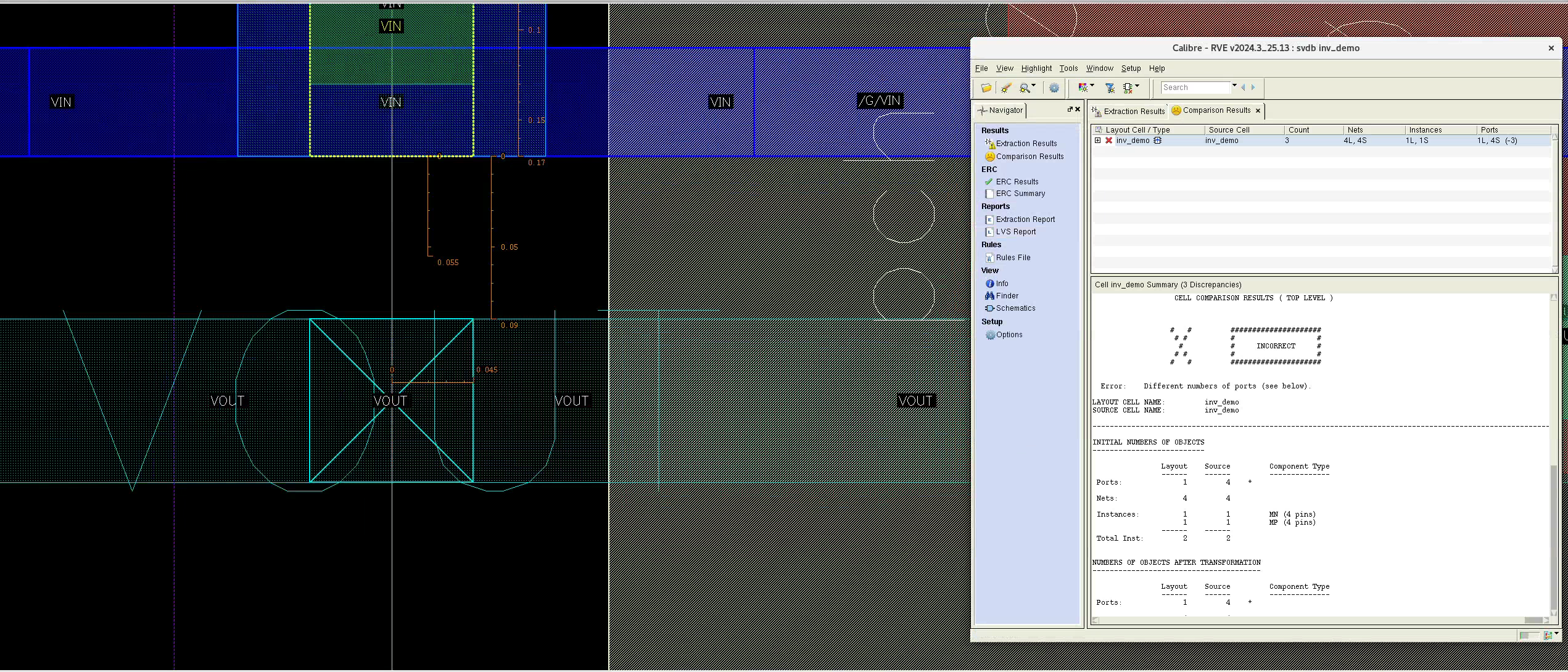
Yep, so add labels to the other three, and you will be LVS clean!
Virtuoso FAQ
When I open Virtuoso, all my instances show up as red boxes
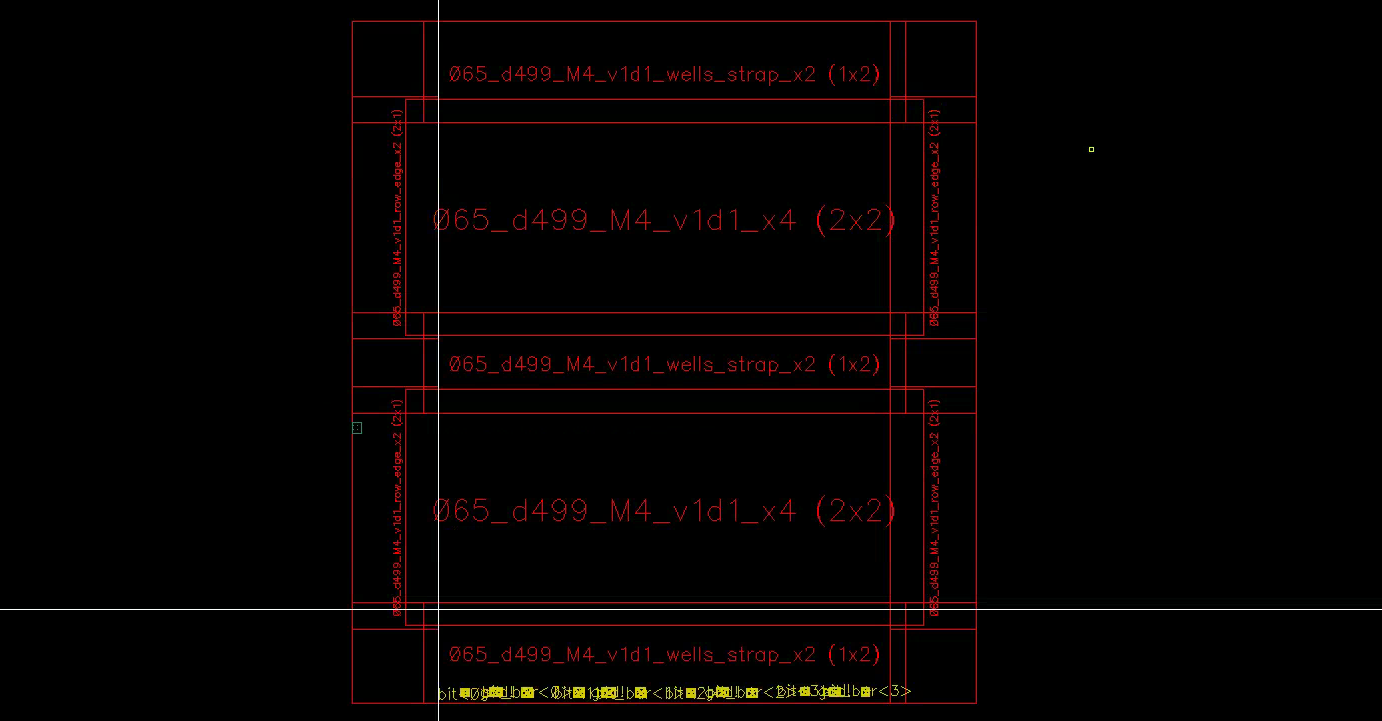
Click Shift+F to display instance details, and Ctrl+F to abstract them
“Connectivity/” doesn’t have a “Generate”/”Update” option
Open the layout with Layout XL.
My pins do not have labels on them (or LVS doesn’t recognize them)
In the “I/O Pins” tab of “Connectivity/Generate/All From Source”, you have to set “Pin Label/Create Label As/Label”. Set:
- “Font Height”: 0.1 (recommended)
- “Layer Name”: “Same As Pin”
- “Layer Purpose”: “Same As Pin”
Cadence keyboard shortcuts stopped responding
Stacked functions. If you accidentally start commands before previous ones (possibly in other tabs) have cleanly finished, it may mess up Virtuoso’s stack, blocking the UI. In this case, close unused tabs, and press ESC to pop the stack
I’m having trouble selecting the shape I want
Keep clicking the shape, until it is highlighted by a white box. The yellow dashed box shows the next shape to be selected.
How to make multibit wires/instances?
Take 8 bits for example: Append <7:0> to the label and instance names. You can also splice individual bits off a multibit wire.
My simulation waveform spits nonsense :(
You might forgot to power VDD. This is dumb, but a recurring theme of the project.
My extraction is taking forever
It should be fine for the inverter, but for more complex designs like the adder, extract only C+CC. RCC will blow up the number of nets.
If the extracted delay has jumped by a massive amount (e.g. more than 2x), there’s a problem in your layout.